Images are an important part of modern digital communication. From website graphics and business logos to social media designs and marketing materials, visual elements help brands communicate ideas and create recognizable identities. However, not every image format works equally well for every project. Understanding the differences between image formats can make design workflows more efficient and help you achieve better results across different platforms.
What Is an SVG Image?
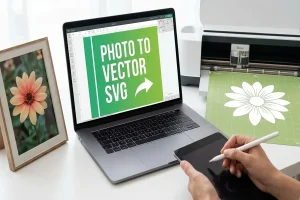
SVG stands for Scalable Vector Graphics. Unlike traditional image formats that store pictures as grids of pixels, SVG files describe graphics using mathematical shapes, paths, lines, and other elements. This makes them particularly useful for illustrations, icons, diagrams, and logos.
One of the biggest advantages of SVG is scalability. An SVG graphic can be enlarged or reduced without becoming pixelated, making it suitable for everything from small website icons to large banners and printed materials. SVG files can also support transparent backgrounds, which is useful when placing graphics over different colors or images.
Another advantage is that SVG graphics can often be edited using compatible design software or text editors. Designers can adjust colors, shapes, and other properties without necessarily recreating the entire image from scratch.
Why Image Formats Matter
Different image formats are designed for different purposes. Choosing the right one depends on how an image will be displayed, shared, edited, or published.
SVG is ideal for vector graphics, logos, icons, and simple illustrations that need to remain sharp at different sizes.
PNG is useful for graphics requiring transparency, screenshots, and images with crisp edges. Unlike SVG, PNG stores raster image data, so enlarging it beyond its original dimensions can reduce clarity.
JPG is commonly used for photographs and complex images containing many colors. It offers effective compression but does not support transparent backgrounds.
WebP is a modern format that supports both photographic images and graphics, often providing relatively small file sizes for web use.
Understanding these differences helps prevent common design problems, such as blurry logos, unnecessarily large files, or images that do not display correctly on a particular platform.
When Should You Convert an SVG Image?
Although SVG is excellent for vector graphics, some applications and platforms do not support it. In these situations, converting an SVG into another format can make the graphic easier to use.
For example, a website may require a PNG version of a logo for a particular content management system. A presentation application might work better with a raster image, while an online marketplace may accept only specific image formats. Converting an SVG can help you prepare graphics for these different requirements.
Raster formats are also convenient when sharing images with people who may not have software capable of opening vector files. A PNG or JPG version can usually be viewed using standard image viewers and embedded into documents without additional steps.
However, keep the original SVG file whenever possible. Since raster conversions can lose the scalability of the original vector artwork, preserving the source file allows you to create new versions at different dimensions whenever necessary.
How to Convert SVG Files Easily
You do not always need professional design software to convert an image. Online conversion tools offer a convenient alternative for users who want to prepare graphics quickly.
An SVG image converter can help simplify the conversion process when you need to adapt graphics for different uses. Instead of learning complex editing software, you can use an accessible browser-based workflow to prepare your files.
Before converting an image, consider the following steps:
- Choose the appropriate output format. PNG is often a good option for logos with transparent backgrounds, while JPG may be suitable for graphics displayed against a solid background.
- Check the dimensions. Consider where the image will appear and choose dimensions that provide sufficient detail without creating unnecessarily large files.
- Review transparency. If your SVG includes a transparent background, make sure the selected output format preserves it when needed.
- Inspect the final result. Open the converted image and check its edges, colors, proportions, and overall clarity.
- Keep a backup. Save the original SVG so you can make future changes or export the graphic into another format.
These simple checks can help you avoid unnecessary rework and ensure your images are ready for publication.
Best Practices for Using SVG Graphics Online
SVG files can be particularly useful for websites because they allow logos and icons to remain sharp on screens with different resolutions. They can also be styled with CSS in compatible implementations, making them flexible for responsive website designs.
Nevertheless, SVG files should be handled carefully. Files from untrusted sources may contain unwanted scripts or other potentially unsafe content, so avoid embedding unfamiliar SVG files without appropriate validation. For public websites, use trusted sources and follow suitable security practices.
It is also important to consider accessibility. Decorative graphics may not require descriptive text, but meaningful icons and illustrations should have appropriate accessible names or surrounding explanations. This helps users who rely on assistive technologies understand the information being communicated.
Finally, avoid choosing a format based solely on file size. A smaller image is useful only when it still meets the visual and technical requirements of your project.
Final Thoughts
Understanding image formats can make everyday design tasks easier, whether you are creating a website, preparing a presentation, or designing marketing materials. SVG is particularly valuable for graphics that need to scale without losing sharpness, while PNG and JPG provide practical alternatives for applications that require raster images.
By selecting the right format, checking conversion settings, and keeping original files, you can maintain image quality and prepare graphics for a wider range of platforms. With a consistent workflow, converting and managing digital images becomes a simple part of creating professional, visually appealing content.